

How Should You Schedule Claude Code Runs?
The first decision isn't where it runs — it's whether the work should outlive this conversation

Every way to schedule Claude Code looks like it should be organized by where the work runs. Start there, though, and you run into a contradiction almost immediately: /loop and a Desktop scheduled task are both technically “your own machine,” yet they behave completely differently. The axis that actually decides everything comes first, and it’s simpler: does the work need to survive after you close this conversation?
If the answer is no, there’s exactly one option: /loop, a scheduler that lives entirely inside the conversation you already have open. If the answer is yes, the next question is where it runs — and there are only three possible values: your own machine, Anthropic’s cloud, or someone else’s CI. Only picking “your own machine” adds a further question: does Claude Code own the clock, or does the OS?
Lay that two-step question out as a table and you get this:
| Method | Outlives the conversation | Where it runs | Who owns the clock | Needs a machine | Local files | Approval | Minimum interval |
|---|---|---|---|---|---|---|---|
/loop |
No (expires in 7 days) | Your own machine | Claude Code | Yes | Visible | Continues the session’s settings | 1 minute |
| Desktop scheduled task | Yes | Your own machine | Claude Code | Yes (has to be awake) | Visible | Per-task permission mode | 1 minute |
OS scheduler + claude -p |
Yes | Your own machine | The OS | Yes | Visible | Grant permission ahead of time | Up to the OS |
| routine | Yes | Anthropic’s cloud (or your org’s self-hosted environment) | Anthropic | No | Not visible (fresh clone every run) | No approval prompts | 1 hour |
| GitHub Actions | Yes | GitHub’s runners | GitHub’s schedule |
No | Not visible (fresh checkout every run) | Up to the workflow | Can’t go below 5 minutes |
The first four rows turn Anthropic’s own axis — your machine versus the cloud — directly into a column. But look at /loop and the Desktop scheduled task: in that column, they land on the exact same value, “your own machine.” What actually separates them is the neighboring column, “outlives the conversation.” Deciding where something runs first doesn’t make everything else fall out automatically — that’s not the whole story.
The GitHub Actions row isn’t something this article forced into the comparison. Anthropic’s own docs name routines, Desktop scheduled tasks, and GitHub Actions together as the answer to “scheduling that survives independently of any session.” What this article does add is the OS-scheduler row — it doesn’t appear in Claude Code’s own feature list at all, because the OS, not Claude Code, owns the clock there.
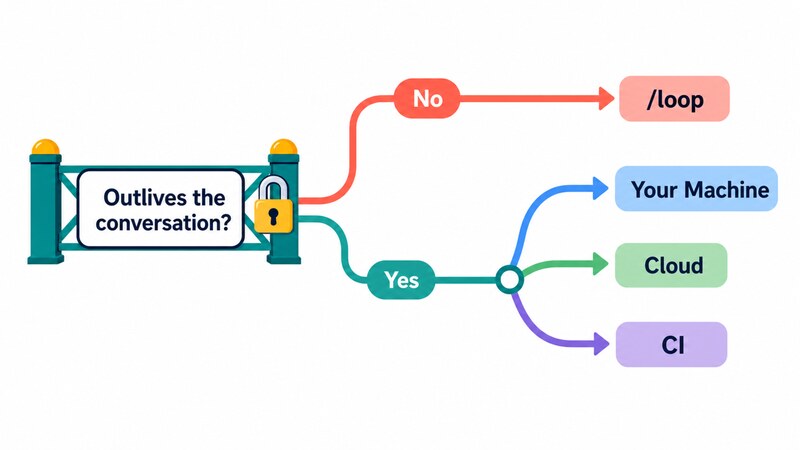
From here, the rest of this article follows those same two questions in order.
Running it inside the conversation: /loop
/loop repeats the same instruction inside the Claude Code conversation you already have open. It’s a good fit for something you want to check on for a while, or for short-interval polling.
It’s worth clearing up a common misreading first: /loop isn’t a “scheduler in name only.” Give it a time or interval and Claude converts it into a cron expression internally, using the same jitter and expiry machinery that powers every other method in this article — just with its own numbers: a one-minute minimum interval and a seven-day lifespan. The only thing that’s actually different from the other four rows in the table above is how long it lasts.
It’s also worth drawing a line around a few similarly-named features. /goal runs on a different axis entirely — it starts the next turn when the previous one finishes, not on a timer. Channels pushes events into a session from the outside, which is the opposite of polling. Monitor, covered below, watches the output of a background script rather than running on a schedule. All three sit near /loop conceptually, but none of them are about time.
Fixed interval, or let Claude decide the pace
/loop has two ways to decide how often it runs. Give it both an interval and a prompt — /loop 5m check the deploy — and you get a fixed schedule at that interval. Give it just a prompt with no interval — /loop check whether CI passed and address any review comments — and Claude decides how long to wait after each run instead.
In that self-paced mode, Claude picks a delay between one minute and one hour after each iteration, based on what it observed, and prints both the delay and its reasoning. It might use the Monitor tool directly here rather than polling repeatedly, which is often more efficient.
Self-paced mode skips the jitter rules, but the seven-day expiry still applies. Not specifying an interval doesn’t mean the task has no schedule at all.
There’s also a provider wrinkle worth knowing. On Amazon Bedrock, Google Cloud, or Microsoft Foundry, the behavior changes: a prompt-only /loop with no interval runs on a fixed 10-minute schedule instead of a Claude-chosen one. The same command can behave differently depending on which provider you’re running through.
One-off reminders aren’t /loop‘s job. Ask in plain language instead — “remind me at 3pm to push the release branch” — and Claude registers a task behind the scenes that fires once and deletes itself. It’s built on the same cron mechanism as /loop‘s recurring tasks, but since whether it repeats is different from the start, so is the command you use to set it up.
What happens when you close the conversation
“Closing the terminal stops /loop” is only half true. What actually matters isn’t the terminal, it’s whether the conversation itself is still alive. Background the conversation — keep it running without a terminal attached — and its /loop tasks carry over and keep firing with no terminal in sight.
Recurring tasks have their own separate clock, though. They expire automatically seven days after creation. Registering one on Claude Code 2.1.237 (Windows 11), every response came back with the line “Auto-expires after 7 days,” so it’s hard to miss. Anything you want to keep running past that window belongs on a routine or a Desktop scheduled task instead.
Each registered task gets an 8-character ID like 5cb3974f, and the list view shows a human-readable version of the cron expression, something like “Every day at 4:07 AM.” It doesn’t show the next fire time, though, so it’s a little thin if all you want is a quick look at what’s coming up.
/loop runs on a plain 5-field cron expression underneath, and that’s where a specific trap shows up. Write the day of week as a name — 0 9 * * MON — and you get Invalid cron expression '0 9 * * MON'. Expected 5 fields: M H DoM Mon DoW. The field count is exactly five already, so reading the error message literally points you at the wrong problem. The real cause is that weekday names aren’t supported; writing it numerically (0 9 * * 1) works.
Every scheduled run in Claude Code also fires with some deliberate slack around the exact time — jitter, so that clients around the world don’t all hit the API at the same instant. The rule differs depending on whether the task is one-off or recurring.
For a one-off task scheduled right on the hour or half-hour, the official docs and the tool’s own implementation agree: it can fire up to 90 seconds early. For recurring tasks, though, the two disagree. The docs say up to 30 minutes late (or half the interval, for anything running more often than hourly); the tool’s own contract says up to 10% of the interval, capped at 15 minutes. Which one is real hasn’t been confirmed — that would mean waiting out a live fire — but at least the shape of the disagreement is clear: the one-off rule matches, only the recurring rule is disputed.
There’s one more behavior worth remembering. Registering a recurring task with /loop doesn’t write the task itself — the cron expression, the prompt — to disk. It does, however, create a file called scheduled_tasks.lock inside the project’s .claude/ folder, recording a value that identifies the current conversation. Does “not written to disk” mean nothing about the project changes at all?
In practice, no. The job’s contents don’t persist, but a quiet marker does — it amounts to a claim that “this project’s scheduler currently belongs to this conversation.” Registering or deleting jobs doesn’t touch that marker, and it stayed in place even once there were zero jobs registered. Anyone opening more than one conversation in the same folder and using /loop in both should keep that marker in mind.

Here’s a place where the official documentation and this build disagree. The Limitations section says: “Claude Code stores the scheduled task list in the project’s .claude directory.” But repeatedly registering and deleting tasks on Claude Code 2.1.237 never produced anything that looked like a task list — the only files that changed were unrelated ones.
The tool contract offers a clue. CronCreate, the tool that registers a task, has a durable parameter, and its description reads: “Has no effect — durable persistence is not available. All jobs are session-only (in-memory, gone when this Claude session ends).”
In other words, the hook for persistence exists, but it’s disabled in this build. That could change in a later version, so treat this as scoped to “as measured on 2.1.237,” not as a permanent fact.
There’s one more small but real limitation. If the scheduled time passes while Claude is busy with something else, /loop doesn’t catch up on the missed runs — it fires once, the next time Claude is free, and that’s it.
Running it after the conversation ends: where it runs
Seeing the name “Remote Control” might suggest a third execution location alongside local and cloud. It isn’t — Remote Control is about how you interact with a session, not where it runs. The official docs put it plainly: “Remote Control sessions run directly on your machine … The web and mobile interfaces are a window into that local session.” Whatever device you’re controlling it from, the work is still happening on your own machine.
Once you’ve decided something needs to outlive the conversation, the next question is where it runs. There are three possible values: your own machine, Anthropic’s cloud, or someone else’s CI. Picking “your own machine” adds one further tiebreaker: does Claude Code own the clock, or does the OS?
Worth a mention here: the Desktop app also has a separate tab called Cowork, which has its own scheduled sessions. That’s a different system worth knowing exists, but it isn’t part of this comparison.
On your machine (1): Desktop scheduled tasks
In the Routines screen of Claude Code Desktop, choosing Local creates a locally-run Desktop scheduled task. Choosing Cloud instead creates a routine, covered below, that runs on Anthropic’s managed cloud.
A Desktop scheduled task is the right fit when you want to keep using your local working environment as it is — touching local files, or relying on the state of your own machine. The trade-off is that the Desktop app has to be open and the machine has to be awake for it to fire. That’s the cost of “runs on your own PC.”
Desktop tasks also let you set a permission mode per task at creation time. Plan mode is one option here — it shows you a plan before acting. Cloud-side tasks have no equivalent, so if you want an approval step in the loop, Desktop is the better fit.
What happens if the computer was asleep at the scheduled time? That specific run is simply skipped. But when the Desktop app starts, or the machine wakes up, it checks for any runs missed in the last seven days, and if it finds one, it fires exactly one catch-up run for the most recent miss.
A daily task that missed six days in a row still fires only once, when the machine wakes. That single catch-up run can land far outside the original schedule — a 9am task might fire at 11pm if the machine slept all day — so if timing matters, it’s worth adding a guard to the prompt itself, not just relying on the schedule.
/loop behaves very differently here: it doesn’t catch up on missed runs at all. It just fires once, the next time Claude is free, and that’s the end of it.
On your machine (2): calling it from an OS scheduler
There’s a second way to run something on your own machine. Instead of letting Claude Code own the schedule, hand “when” over to the operating system, and have it call Claude Code’s non-interactive mode, claude -p, from the outside. On Windows, that’s Task Scheduler; on Mac, it’s launchd, the standard job-management mechanism built into macOS. On Mac specifically, launchd is the standard choice for timed jobs, and cron isn’t recommended there.
This path doesn’t show up anywhere in Claude Code’s own feature list, because Claude Code isn’t the one managing the clock. But within the “runs on your own machine” branch, it’s a genuinely practical option alongside Desktop scheduled tasks.
Whose permission does a task the OS launched actually run under? This is where approval handling looks very different from everything else here. claude -p can’t show an interactive prompt. The built-in starting permission mode is Manual on every plan, so unless you pass --allowedTools or --permission-mode ahead of time to grant permission up front, a task launched by the OS just stalls the moment it needs approval.
Billing changes with a single flag, too. Call claude -p normally, and it uses whichever subscription you’re already logged into. Add --bare, though, and it stops reading OAuth credentials entirely — you’ll need ANTHROPIC_API_KEY instead, and billing switches to API tokens.
There’s one more trap worth knowing about. Without --bare, calling Claude Code from an OS scheduler still runs the hooks in a project’s .claude/settings.json — even in a folder you’ve never explicitly trusted, because a -p session never shows the workspace-trust dialog. --bare avoids that, but at the cost of also skipping skills, plugins, MCP (the mechanism for connecting to external services), and CLAUDE.md — so which one you pick is a genuine trade-off.
In the cloud: routines
A routine runs on Anthropic’s managed cloud. It keeps going after you close your laptop, which makes it a good match for overnight jobs or anything you’d rather set and forget. From the CLI, you create one with the /schedule command, and the run itself happens entirely on the cloud side. Some organizations route routines to their own self-hosted environment instead of Anthropic’s managed cloud.
Because it runs in the cloud, it makes more sense to think of every run as starting from a fresh cloud environment — a fresh clone of the repository — rather than seeing your local state. That’s a better fit for stable, repeatable work than for anything that depends on your machine’s exact state. At creation time, you can also pick a model selector — which model handles the run — but that’s not the same as toggling Plan mode. Routines run autonomously with no approval step and no Plan mode option at all.
There’s also a cap on how many times it can run. Each account has a daily limit on routine runs, though the exact number isn’t published — you check it from the account screen. One-off runs don’t count against that cap.
One more thing worth updating your mental model on: routines aren’t just for time-based schedules anymore.
A trigger can fire on a schedule, on an API call, or on a GitHub event. GitHub events are limited to two categories — pull requests and releases — not arbitrary repository activity. This article focuses on the schedule trigger, the time-based case.
In CI: GitHub Actions
GitHub Actions is the choice when you want Claude Code centered on a repository. It fits naturally into PR and CI workflows, and it’s the natural entry point for automating something as part of a development flow. It’s also not something this article invented as an analogy — the official docs name it, alongside routines and Desktop scheduled tasks, as one of the ways to get scheduling that survives independently of any session.
One caveat worth knowing about GitHub’s own scheduling: a workflow with a schedule trigger only runs from the default branch, and on public repositories it’s automatically disabled after 60 days with no repository activity. A schedule you set up can quietly stop firing if the repo goes idle, so it’s worth checking on it occasionally.
Combining skills with scheduled runs
Claude Code has skills — reusable procedures defined in SKILL.md files under .claude/skills/ — and it’s natural to want to pair them with scheduled runs. Trying that without reading the fine print doesn’t always work the way you’d expect.
The first trap is where the skill lives. A personal skill placed in ~/.claude/skills/ isn’t visible to routines. The documentation is explicit about it: “cloud sessions, including routines, don’t read ~/.claude/skills/ on your machine.”
Since a routine clones the repository fresh on every run, anything that only exists locally never reaches it. There are three ways around this: commit the skill into the repository’s .claude/skills/, enable and sync it through your claude.ai account, or distribute it through a plugin declared in the repository.
The next question is how to invoke it. Writing /skill-name in a task’s prompt looks like it should call the skill directly, and that’s not a guess — it’s documented. The frontmatter setting disable-model-invocation notes that, as of v2.1.196, it “also prevents the skill from running when a scheduled task fires with the skill as its prompt” — read the other way, a skill left at the default (false, or unset) can be invoked from a scheduled task’s prompt with /skill-name.
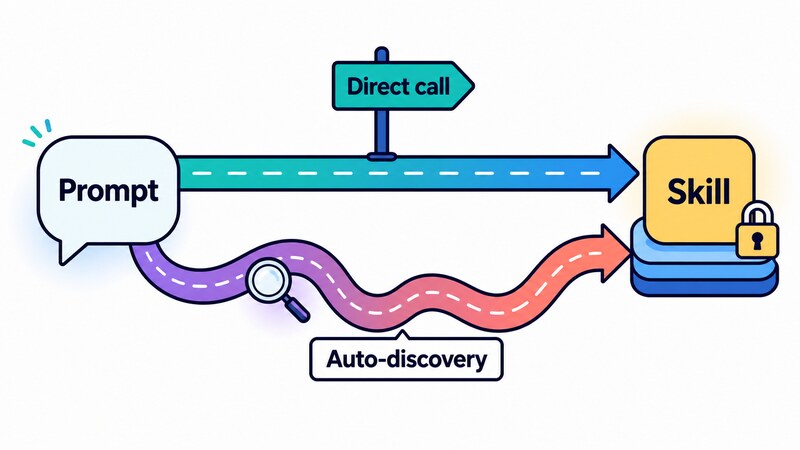
The other way to invoke a skill is to write the prompt as natural language matching the skill’s description, and let Claude find it on its own. If a skill’s description reads “Review recent repository changes and produce a daily engineering summary,” writing the task’s prompt as “Check what’s changed since yesterday and put together a daily summary for the engineering team” lets Claude pick and run that skill by itself.
That auto-discovery stops if disable-model-invocation is set to true. In an ordinary interactive session, a skill set to true simply won’t run unless you call it explicitly with /skill-name. In the scheduled-task context, though, it’s treated more strictly.
The /loop documentation describes what happens to a scheduled fire from /loop itself: “A scheduled fire only runs skills that Claude is allowed to invoke on its own.” The same rule covers built-in commands like /permissions or /model, and MCP prompts too — none of these execute either; they all arrive as plain text.
The claim that this extends to scheduled tasks in general actually comes from a different page — the skills documentation’s own description of disable-model-invocation, which states it “also prevents the skill from running when a scheduled task fires with the skill as its prompt.” Read together, a skill set to true won’t start from a scheduled task even if the prompt names it explicitly with /skill-name. Assuming an explicit call always works is a trap that fails silently.
A Desktop scheduled task, by contrast, supports explicit /skill-name calls and can also see personal skills, since it inherits your local setup wholesale. If you need a specific skill to run reliably, Desktop is the more predictable option.
How I’d choose
Working back through everything above, five rules of thumb fall out.
- Just trying it out:
/loop - Want local files visible, and want to pick the approval flow yourself: a Desktop scheduled task
- Want it on your own machine, but happy to let the OS own the clock: an OS scheduler with
claude -p - Need it to keep running with your laptop closed: a routine
- Want it folded into PRs or CI: GitHub Actions
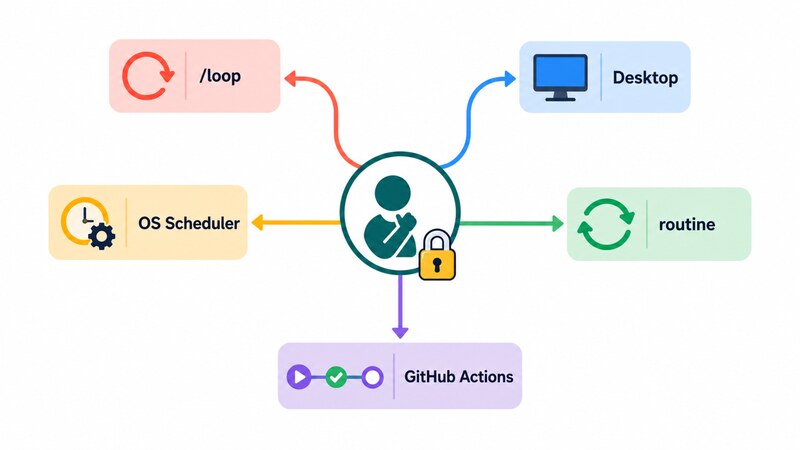
Count them and you get five, but the number isn’t really the point — it’s the three questions that got you there. I’d start with /loop or Desktop myself. The reasoning is simple: rather than jumping straight to a cloud-resident process or a CI integration, both let me try things out as a direct extension of whatever I’m already doing. Once something’s missing, that’s the point to move to an OS scheduler, a routine, or GitHub Actions.
Subscription plan or API tokens: what actually gets billed
Once you’re weighing these options, the natural next question is whether a run draws from your subscription plan or triggers separate API charges. The answer depends on which method you pick and how you authenticate.
Routines are included in Pro, Max, Team, and Enterprise plans with Claude Code on the web enabled. Desktop scheduled tasks run entirely locally, so they don’t fall under the “on the web” umbrella, but they still run within the same subscription plan — neither is billed separately as API usage. An OS scheduler calling claude -p follows the same rule by default, using whichever subscription you’re logged into, unless you add --bare and skip OAuth entirely, in which case that path alone switches to API-token billing.
GitHub Actions is different: how it’s billed depends on how you authenticate. Point it at ANTHROPIC_API_KEY and it’s billed as API tokens, same as any other API usage. Authenticate instead with an OAuth token (CLAUDE_CODE_OAUTH_TOKEN — available on Pro, Max, Team, and Enterprise, and tied to your subscription), and the run draws from your subscription’s usage instead. The documentation says exactly that: “If you authenticate with an OAuth token, runs use your Claude subscription instead of API billing” — so assuming GitHub Actions always means API billing isn’t correct. That said, the same documentation also notes: “Each run consumes two kinds of resources: GitHub Actions minutes … API tokens …” — so even authenticated with an OAuth token, a run still consumes GitHub Actions minutes as a separate resource.
To check usage, run /usage. It used to be called /cost; the command reference now lists it as “Alias for /usage,” so that’s all it does today. Per the documentation, subscribers on Pro, Max, Team, or Enterprise get a full breakdown of what’s counting against their plan limits right inside the CLI when they run /usage — there’s no need to assume usage tracking only lives on a separate dashboard.
Put together: routines, Desktop scheduled tasks, and an OS scheduler all run inside your subscription plan (the OS-scheduler path only breaks that rule with --bare), while GitHub Actions can go either way — subscription or API tokens — depending on how you authenticate. If you already know which one you want to draw from, work backward from the authentication method and the rest follows.
Takeaway
Scheduling Claude Code really comes down to one question first: does the work need to outlive the conversation you have open right now? Answer no, and it’s /loop. Answer yes, and the next question is where it runs — your own machine, Anthropic’s cloud, or someone else’s CI — with a third question, Claude Code’s clock or the OS’s, only applying if you picked your own machine.
One starting question, three questions total, five destinations: /loop, a Desktop scheduled task, an OS scheduler, a routine, and GitHub Actions. Memorizing five names is less useful than remembering the three questions that get you to one of them.
Where do you want it to run, and whose approval do you want in the loop? Work backward from those two, and the right one tends to be obvious.